Twinkeep feature guide
Junk Sweep: caches, logs and Xcode leftovers
Junk Sweep finds regenerable files that pile up in your Library — app caches, logs, Xcode build products, iOS device support, simulator caches — and sorts them by how safe they are to remove.
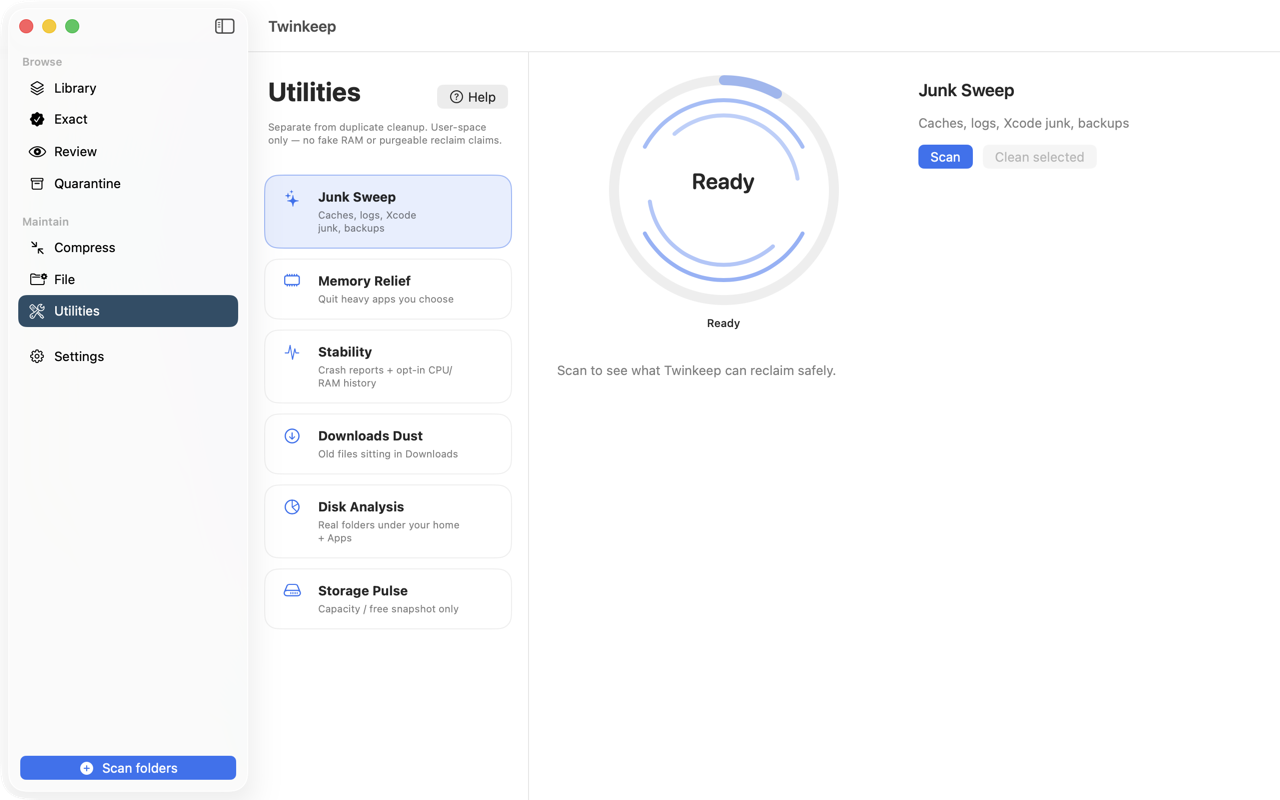
What it's for
A Mac accumulates files that exist purely so something can be faster next time. App caches. Log files. Xcode's build products, which for an active developer can run to tens of gigabytes.
None of it is your data, and all of it regenerates. But \u201cjunk cleaner\u201d apps have a poor reputation for good reason: many sweep folders they do not understand and take things you needed.
Junk Sweep is deliberately narrow. It looks only in known locations, sorts everything it finds into three risk tiers, and pre-selects only the tier that is genuinely safe. Everything goes to the Trash, so even a mistake is recoverable from Finder.
How to use it
-
Open Utilities and choose Junk Sweep
On the App Store build Twinkeep will ask for access to your Library folder first — the sandbox does not permit reading it otherwise. Grant it once and the scan proceeds.
-
Scan
Twinkeep walks only its known list of locations: caches, logs, Xcode DerivedData, iOS device support, simulator caches, and iOS backups. It never walks other apps' container data.
-
Read the three tiers
Safe to clean is selected for you — caches and logs that apps recreate on demand. Suggested is shown but unselected, because clearing it costs you a rebuild or a re-download. iOS backups are listed separately with a strong warning.
-
Adjust the selection
Sort and filter by size, name, or date to find the large items. Select safe re-selects just the safe tier if you have been experimenting.
-
Clean
Selected items move to the Trash. Nothing is deleted outright, so anything you regret is one Finder window away until you empty it.
What each tier means
- Safe — app caches, log files, and Xcode's shared compiler and module caches. Regenerated automatically. Nothing is lost.
- Suggested — per-project Xcode build folders and iOS device support. Removing these is safe but costs time: a full rebuild, or re-downloading device support the next time you debug that iPhone.
- iOS backups — device backups under MobileSync. These are irreplaceable. Twinkeep will never pre-select them and warns clearly.
What it will never touch
Some paths are blocked outright regardless of tier: Keychains, Mail, Accounts, Cookies, Messages, Calendars, Reminders, Address Book, the Trash — and your crash reports. Twinkeep also never walks other apps' Containers.
Sizes include hidden files
Folder totals count hidden files, because cleaning removes them too. The figure Junk Sweep reports is what you actually reclaim, not an underestimate that ignores dotfiles.
Common questions
Is it safe to delete cache files on a Mac?
For the items Twinkeep marks Safe, yes — they are regenerable by design and apps recreate them on demand. That is why only that tier is pre-selected, and why everything goes to the Trash rather than being deleted.
Will it delete my Xcode projects?
No. It removes build products under DerivedData, not source code. Shared compiler and module caches are treated as safe; per-project build folders are listed as suggested, because clearing them means a full rebuild.
Why does it ask for access to my Library folder?
The App Store build runs in a sandbox that cannot read ~/Library without your permission. Granting access once lets the scan see caches and logs. Without it, Twinkeep tells you it cannot look rather than reporting an empty result.
Does it touch my crash reports?
No, and this is enforced deliberately. DiagnosticReports and CrashReporter are on a permanent block list, because the Stability tool reads those reports.
Try it on your own files
Twinkeep is a one-time $9.99 purchase — no subscription, no account, and nothing leaves your Mac. Requires macOS 13+.