Twinkeep feature guide
Disk Analysis: find what is actually using your space
Disk Analysis walks your home folders and Applications and reports the biggest space consumers — with libraries collapsed and busy folders rolled up, so you get a readable answer instead of ten thousand files.
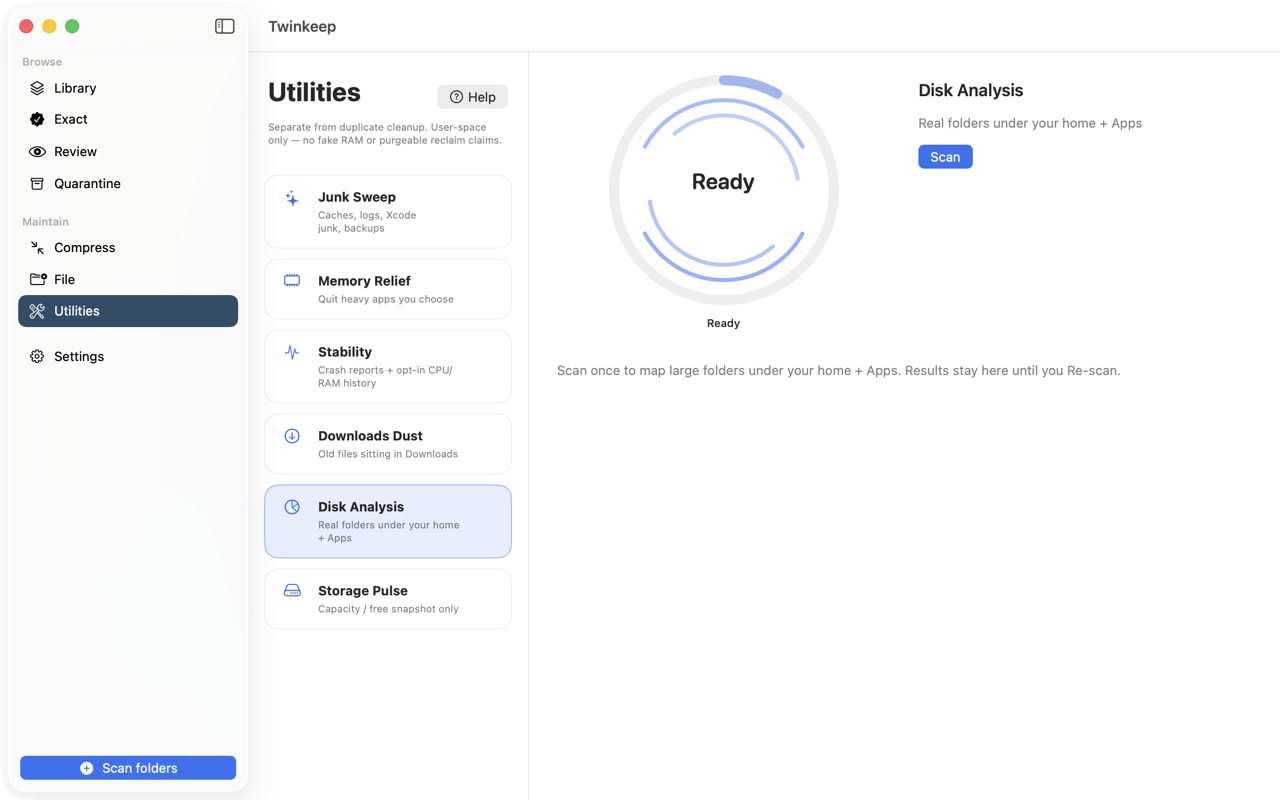
What it's for
\u201cYour disk is almost full\u201d is not an actionable message. The useful question is which folder is responsible, and most disk tools answer it badly — either by listing every file on your Mac, or by showing a treemap you have to decode.
Disk Analysis is built to be read. It walks Desktop, Documents, Downloads, Movies, Music, Pictures, Library and Applications, and applies rules so the result stays legible: a Photos library reports as one item rather than every album inside it, and a folder full of similarly-sized things is rolled up rather than exploded.
How to use it
-
Open Utilities and choose Disk Analysis
On the App Store build Twinkeep asks for folder access first, because the sandbox cannot enumerate your home folders otherwise.
-
Scan
Progress shows the folder being measured. A full pass over a large home folder takes a while — it is reading real sizes, not estimating.
-
Read the results largest first
Each row shows size, category (Music, Photos, Videos, Documents, Developer, Library, Downloads) and why it is grouped that way — a media library kept whole, an app bundle, or a folder with no single dominant child.
-
Open anything in Finder
Twinkeep does not delete from Disk Analysis. It tells you where the space went; you decide what to do, in Finder or in the app that owns the files.
-
Re-scan when you have made changes
Results are cached so you can come back to them, with the time of the last scan shown. Re-scan to refresh.
How results stay readable
- Media libraries collapse — Music, Movies, Pictures, Photos libraries, Podcasts, Audiobooks and Books report as one row, not as every album or year inside.
- App and framework bundles are measured whole, as macOS treats them.
- Busy folders roll up — when a folder holds many items and none dominates, Twinkeep reports the folder rather than a wall of near-identical rows.
- Large individual files are surfaced on their own when they are big enough to matter.
What it does not cover
This is a map of your home folder and Applications, not of the whole disk. System files and macOS purgeable space are deliberately excluded — that space belongs to macOS and no third-party app should claim to reclaim it.
It is read-only
Disk Analysis never moves or deletes anything. It answers where the space went; acting on that is up to you.
Common questions
Why is the total smaller than what About This Mac reports?
Twinkeep measures your home folders and Applications, not system files or purgeable space. macOS manages that space itself, and Twinkeep will not claim to reclaim something it does not control.
Why is my Photos library one row instead of every album?
Because a list of ten thousand albums is not an answer. Media libraries are reported whole so you can see they are the problem, then manage them in the app that owns them.
Can I delete things directly from Disk Analysis?
No, deliberately. It is a read-only map. Removing a large folder is a decision with consequences Twinkeep cannot judge, so it shows you where the space is and leaves the action to you.
Does it scan external drives?
It covers your home folders and Applications. For duplicates on an external drive, point a scan at it from Scan folders instead.
Try it on your own files
Twinkeep is a one-time $9.99 purchase — no subscription, no account, and nothing leaves your Mac. Requires macOS 13+.