Twinkeep feature guide
Exact duplicates: identical files, found by content
Exact duplicates are files whose contents are byte-for-byte identical, no matter what they are called or where they live. Twinkeep finds them by hashing content rather than comparing names, keeps the best copy, and quarantines the rest for you.
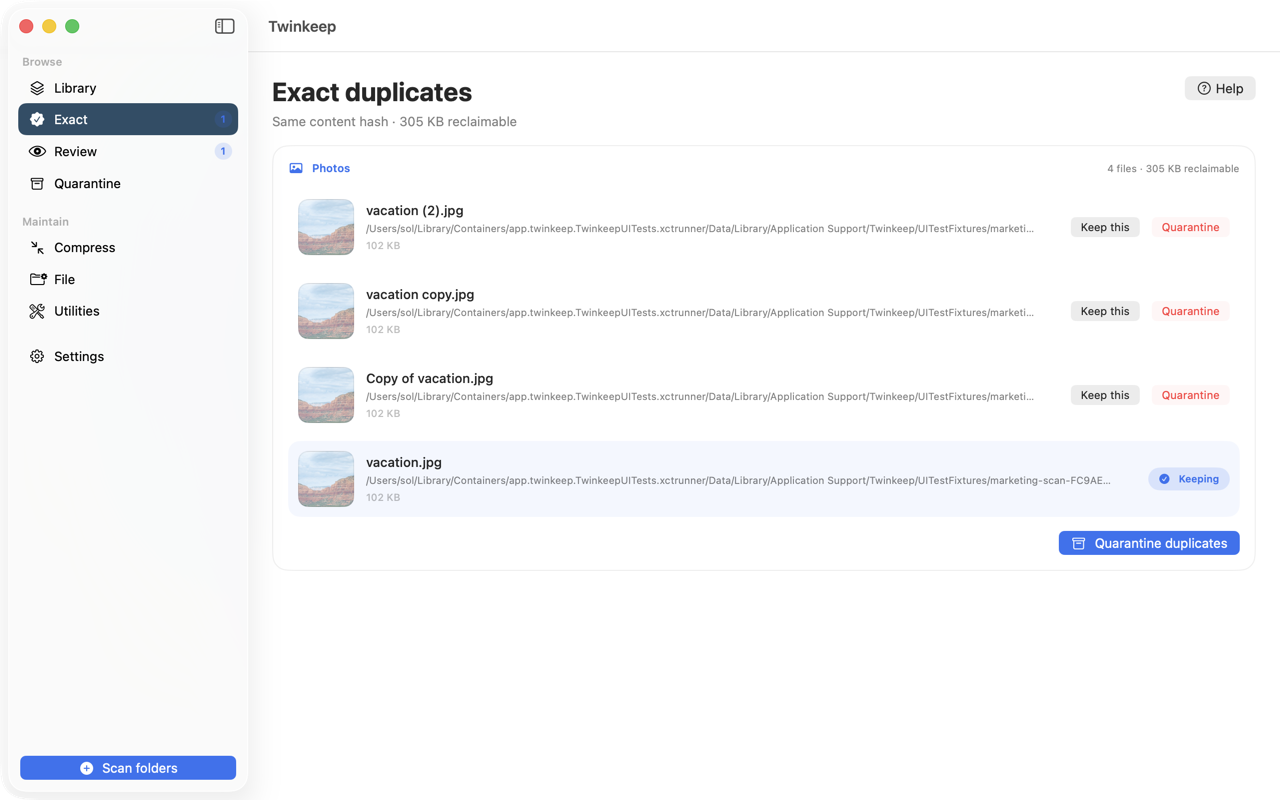
What it's for
The same photo arrives on your Mac three times: once from your camera, once because you AirDropped it to yourself, once because a message thread saved a copy. The filenames differ. The bytes do not.
Exact matching catches these with certainty. Twinkeep reads the contents of every file it scans and computes a SHA-256 hash. Two files with the same hash are the same file, full stop — there is no judgment involved and no risk of a false match.
Because it is certain, Twinkeep handles it for you. Extras are quarantined automatically so a library with a thousand duplicates does not become a thousand decisions.
How to use it
-
Scan the folders you want covered
Click Scan folders and choose one or more folders — a Pictures library, an old backup drive, a camera dump. Twinkeep only ever looks where you point it.
-
Let the hash pass run
Twinkeep hashes file contents as it scans. A hash index caches results by path, size, and modification date, so a second scan of the same folders is dramatically faster.
-
Open Exact
Groups are listed largest first, with the reclaimable total at the top. Each group shows the keeper Twinkeep chose and the extras it would quarantine.
-
Override the keeper if you disagree
Every file in a group has a Keep this button. Choosing a different keeper re-points the group immediately — the others become the extras.
-
Let it clean, or do it yourself
Auto-quarantine is on by default, so exact extras are already moved by the time you look. Prefer to approve each group? Switch it off in Settings and use Quarantine duplicates per group instead.
How the keeper is chosen
When several files are identical, Twinkeep still has to pick one to keep. In order of preference:
- Live Photo and HEIC originals over re-exports
- Names that do not look like copies —
IMG_4021.heicbeatsIMG_4021 copy 2.heic - The older file, usually the original
- The shorter path, usually your library rather than a scratch folder
What counts as exact
Only byte-identical contents. Two exports of the same photo at different quality settings are not exact duplicates, and neither are two encodings of the same song or video — those are different files that happen to look or sound alike. Similar photos go to Review instead, where you decide.
Photos, video, and audio
Exact matching covers all three, in one scan. It is content hashing, so the file type does not matter — a duplicate PDF or ZIP is found the same way a duplicate photo is.
Common questions
Can exact matching delete the wrong file?
It cannot pick the wrong file in the sense of a false match — identical SHA-256 hashes mean identical contents. And nothing is deleted: extras move to Quarantine, where you can restore them to their original location.
Does it find duplicates with different filenames?
Yes. Names are irrelevant to exact matching. Twinkeep compares what is inside the file, so a renamed copy in a different folder is still caught.
Why did it not group two photos that look the same?
They are probably not byte-identical — different quality, a crop, or a re-export. Those are near-duplicates and go to Review, where you compare them side by side and choose.
Is scanning again slow?
No. Twinkeep caches hashes by path, size, and modification date, so unchanged files are skipped on subsequent scans.
Try it on your own files
Twinkeep is a one-time $9.99 purchase — no subscription, no account, and nothing leaves your Mac. Requires macOS 13+.