Twinkeep feature guide
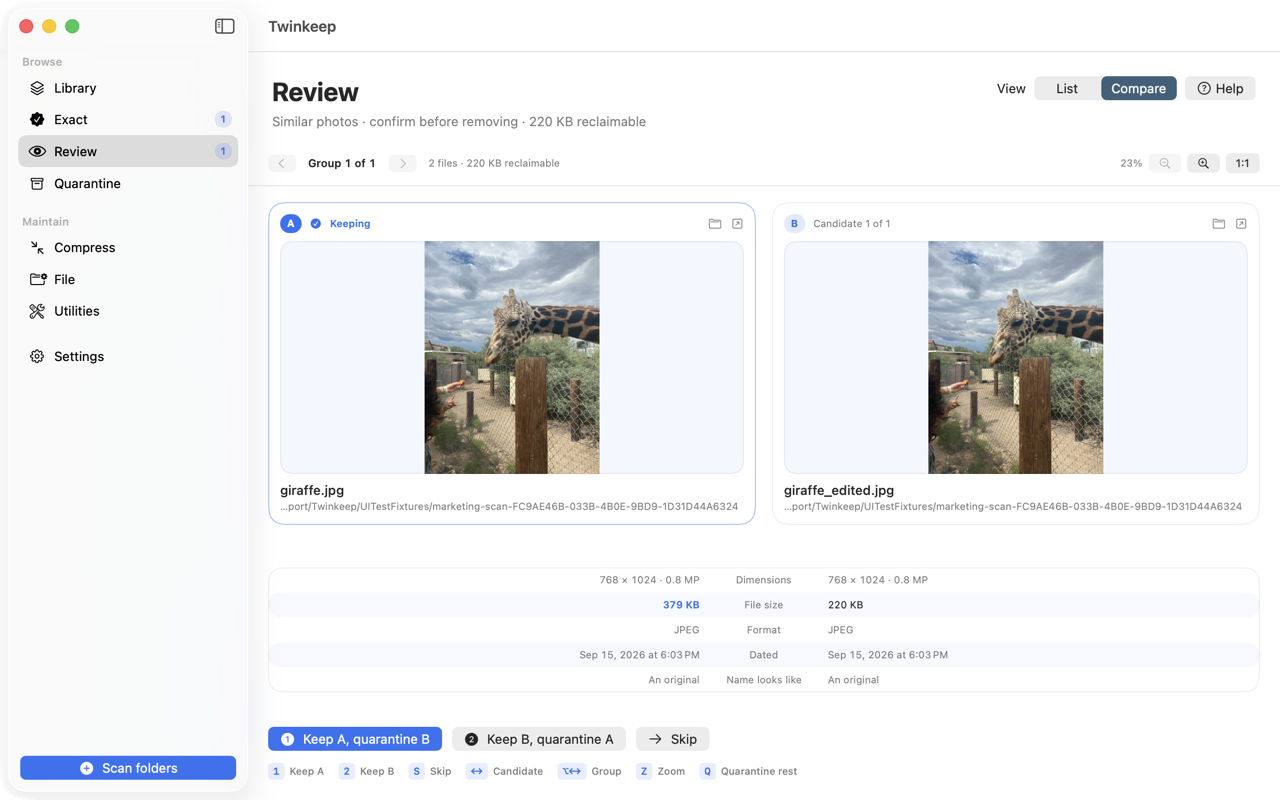
Review: see both photos full size, side by side
Review is where Twinkeep sends the photos it will not decide for you — the same shot re-cropped, re-exported, or resaved. It puts two copies on screen at full size, with synced zoom and a strip showing exactly what differs, so you can pick a keeper in about a second.
What it's for
Exact duplicates are easy: identical bytes, nothing to decide, and Twinkeep quarantines the extras for you automatically. Near-duplicates are the hard ones. The same photo saved at two qualities. A crop you made for Instagram. An export that stripped the metadata.
Those are not identical files, so no hashing tool can safely pick a winner. They come to Review, where you decide — and Review is built so that deciding takes a second rather than a minute.
Because exact copies are handled automatically, Review only ever shows you the genuine judgment calls. A library with a thousand duplicates does not mean a thousand decisions.
How to use it
-
Scan a folder
Click Scan folders and pick any folder with photos in it — your Pictures library, an old backup drive, a camera dump. Twinkeep hashes contents to find exact copies and uses perceptual matching to group lookalikes.
-
Open Review
Review opens face to face by default: the photo Twinkeep suggests keeping on the left as A, the candidate on the right as B. Both are full size, not thumbnails. Prefer the old stacked list? The List switch at the top right brings it back.
-
Zoom in on the difference
Zoom and pan move together across both panes, so you are always looking at the same corner of the same shot. Press Z to toggle between fit and 100%. Past 1.5× it switches to nearest-neighbour rendering so real pixel differences are visible instead of smoothed away.
-
Read the difference strip
Between the two panes, Twinkeep lists what actually differs: dimensions and megapixels, file size, format, camera, capture date, GPS, and whether the filename looks like a copy. The stronger file is highlighted using the same keep policy Twinkeep applies everywhere else.
-
Mark it with one key
1 keeps the left, 2 keeps the right, S skips, and Q quarantines the rest of the group. Arrow keys move between candidates, ⌥ plus arrows move between groups. A group of any size becomes a short run of A-versus-B decisions until one file is left.
How Twinkeep decides which photo to suggest
The A pane is Twinkeep's suggestion, not a verdict. The keep policy prefers, in order:
- Live Photo and HEIC originals over re-exports
- Names that do not look like copies —
IMG_4021.heicbeatsIMG_4021 copy 2.jpg - The older file, which is usually the original
- The shorter path, which is usually the library rather than a scratch folder
You can always override it. Nothing moves until you press a key.
Exact matches versus lookalikes
Twinkeep separates the two deliberately:
- Exact duplicates are found by SHA-256 content hashing. Byte-identical, whatever the filename. These are quarantined for you automatically — switch that off in Settings if you would rather approve each one.
- Near-duplicate photos are found by perceptual hashing, which compares what the image looks like rather than its bytes. Similarity is a judgment, so these always wait for you in Review.
Nothing is deleted from Review
Marking a photo sends the loser to Quarantine, not the Trash and never straight to deletion. You can restore anything from Quarantine to exactly where it came from, browse it as a list, icons, gallery, or filmstrip, and empty it permanently only when you are sure.
Common questions
How does Twinkeep find similar photos that are not identical?
It uses perceptual hashing, which describes what an image looks like rather than what bytes it contains. Two exports of the same shot produce similar perceptual hashes even though their files are completely different, so they get grouped as lookalikes.
Do I have to review every duplicate on my Mac?
No. Byte-identical copies are matched by content and quarantined automatically — a thousand of them take no more of your time than one. Review is kept for genuine near-duplicates, where only you can say which version to keep.
Can I compare photos at full resolution?
Yes. Press Z to toggle between fit and 100%. Zoom and pan are synced across both panes, and above 1.5x Twinkeep switches to nearest-neighbour rendering so you see actual pixels rather than a smoothed approximation.
What happens to the photo I do not keep?
It moves to Quarantine, where it stays until you restore it or empty Quarantine yourself. Twinkeep never deletes a photo straight from Review.
Does it work with video and audio too?
Exact duplicate detection covers photos, video, and audio. Perceptual lookalike matching is photo-only, because similarity for video and audio is a different problem and Twinkeep would rather not guess.
Try it on your own files
Twinkeep is a one-time $9.99 purchase — no subscription, no account, and nothing leaves your Mac. Requires macOS 13+.