PrecisDesk feature guide
Webcam picture-in-picture, placed after you record
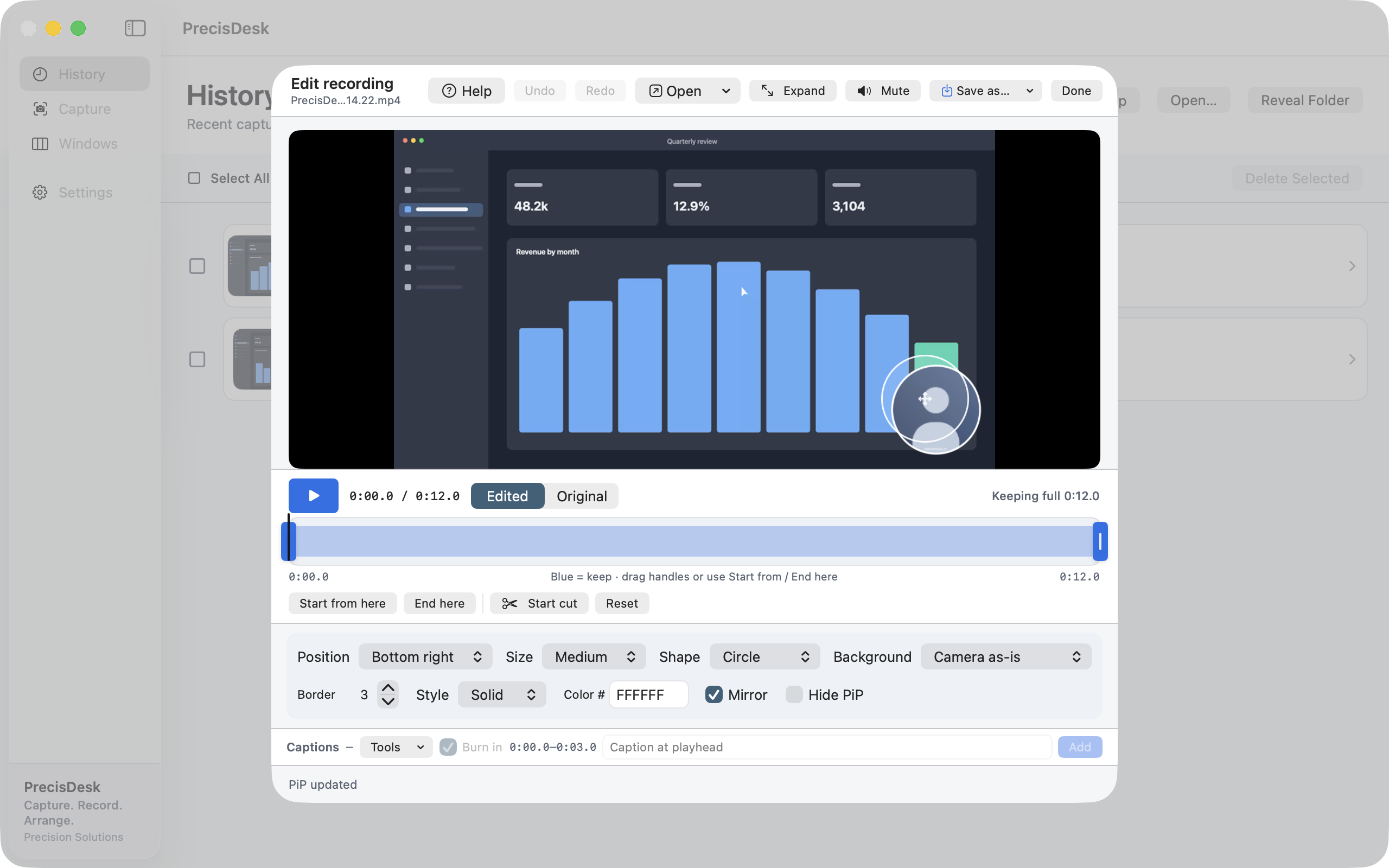
Record your camera alongside the screen and decide where it goes later. Move it between corners partway through, resize it, make it a circle, give it a border, or hide it entirely for the sections where nobody needs to see you.
What it's for
Burned-in webcam overlays have one problem: the camera is nailed to a corner for the whole video, and sooner or later something important appears underneath it.
PrecisDesk can record the camera to a separate track and composite it when you export. That means the position is a decision you make in the editor, with the video in front of you — and it can change partway through. Drag the camera off the thing it is covering, and it stays moved from that point onward.
If you would rather have it fixed, that works too: choose to burn it in while recording and it behaves like every other recorder.
How to use it
-
Turn on Webcam PiP before recording
In Capture, switch on Webcam PiP. Choose whether to burn the camera in as you record, or to place it in the editor afterwards.
-
Record as normal
Placed-after mode keeps your screen recording clean and writes the camera to a companion track next to it.
-
Position it in the editor
Open the recording and drag the camera anywhere on the video, or pick a corner. Size, margin and shape are all there — circle or rounded rectangle.
-
Move it partway through
Park the playhead where the camera is in the way and move it. From that point on it stays where you put it, until the next change you make.
-
Style it, or hide it
Add a border, set its colour and thickness, mirror the image, or switch Hide PiP on for a stretch where the camera should not appear at all.
Placement
- Four corners, centre, or drag it anywhere
- Small, medium or large, with an adjustable margin
- Circle or rounded rectangle
- Changes apply from the playhead onward, so the camera can move during the video
Look
- Border with adjustable width, colour and style
- Mirror the camera image
- Opacity, and a background treatment behind the camera
- Hide it entirely for any stretch of the timeline
Common questions
Do I have to decide where the camera goes before recording?
No. Choose “place in editor after” and the camera is recorded to its own track, so you position it with the finished video in front of you.
Can the camera move during the video?
Yes. Move it at any point on the timeline and it stays there from that moment on, so it can dodge whatever is underneath it.
Can I record without the camera on screen at all?
Yes — Webcam PiP is off by default, and even with it on you can hide it for any part of the timeline.
Try it on your own files
PrecisDesk is a one-time $9.99 purchase — no subscription, no account, and nothing leaves your Mac. Requires macOS 14+.