PrecisDesk feature guide
Screen recording: record the screen, your voice, and what you press
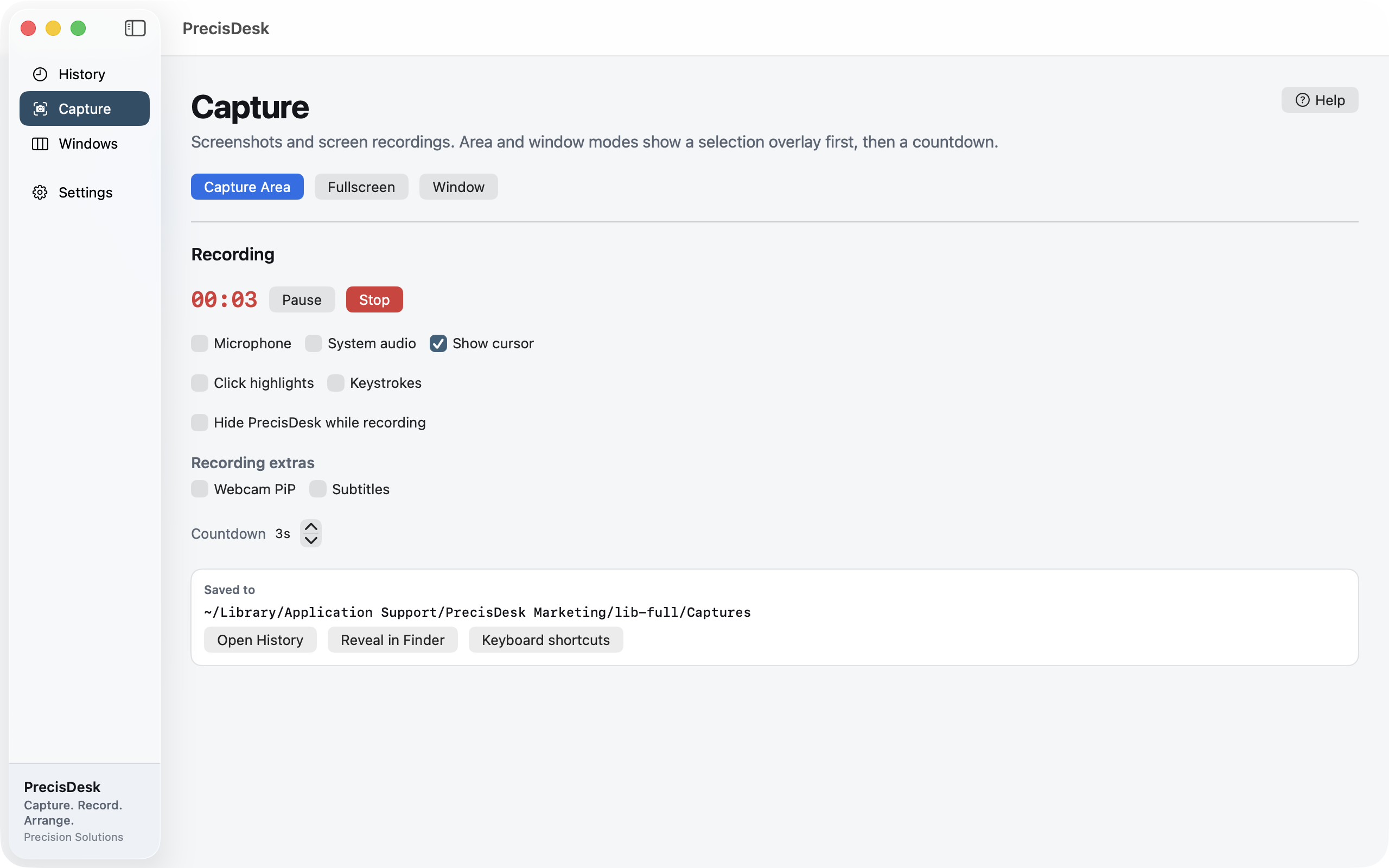
Record a display or a region to MP4, with your microphone and the audio coming out of your Mac. Turn on click highlights and on-screen keystrokes when you are recording a walkthrough, and hide PrecisDesk itself so it never appears in the video.
What it's for
Most screen recorders make you choose: either you get a recorder, or you get an editor, and the two do not know about each other. You record, you export, you open something else, you trim, you export again.
PrecisDesk finishes the job in one place. When you stop recording, the clip opens in the editor with the timeline already loaded. Trim the dead air off the front, cut the middle out, add captions, place your camera — then save once.
How to use it
-
Set up the recording
Open Capture and choose what to record. Turn on Microphone and System audio if you want either in the file.
-
Turn on the walkthrough extras
Show cursor keeps the pointer visible. Click highlights puts a ring around every click. Keystrokes draws the keys you press on screen — useful when you are demonstrating a shortcut.
-
Get PrecisDesk out of the shot
Switch on Hide PrecisDesk while recording and the app's own window disappears for the duration, so your recording is of your work and not of the recorder.
-
Record
A countdown runs — three seconds by default, adjustable or off — then the timer starts. Pause and resume as often as you like; the pauses are stitched out of the file, not left as frozen frames.
-
Stop, and land in the editor
Stop and the clip opens in the editor straight away, ready to trim, caption, or place the webcam.
What goes into the file
- H.264 MP4, or export as an animated GIF from the editor
- Microphone and system audio, independently switchable
- Cursor, click highlights and keystroke overlays
- Webcam picture-in-picture, burned in as you record or placed afterwards
While you are recording
- Pause and resume without splitting the file
- Record one display, or a region of one
- Hide the app so it never appears in the recording
Common questions
Can it record system audio?
Yes, alongside or instead of the microphone. Both are switches you set before you start.
What happens to the pauses?
They are removed. A pause does not leave a frozen section in the file — the timeline closes up, so a recording with three pauses in it plays as one continuous take.
Can I record just part of the screen?
Yes. Record a whole display or a region of one, and if you have several monitors PrecisDesk asks which to use.
Try it on your own files
PrecisDesk is a one-time $9.99 purchase — no subscription, no account, and nothing leaves your Mac. Requires macOS 14+.