PrecisDesk feature guide
Screenshots: capture an area, a window, or the whole screen
Pick a region with the crosshair, click a single window, or grab an entire display. Every shot lands in a Quick Access overlay where you can annotate it, copy it, or send it somewhere — before it ever becomes a file you have to go looking for.
What it's for
The built-in macOS screenshot tool takes the picture and then leaves you alone with it. You end up with a Desktop full of Screenshot 2026-09-09 at 14.22.51.png and no idea which is which.
PrecisDesk puts the next step in front of you. The moment a capture lands, an overlay appears with the image in it: annotate, copy to the clipboard, open the editor, print it, or throw it away. Files go to a folder you choose, named by a template you control, and every one is listed in History so you can find it later.
How to use it
-
Choose a capture mode
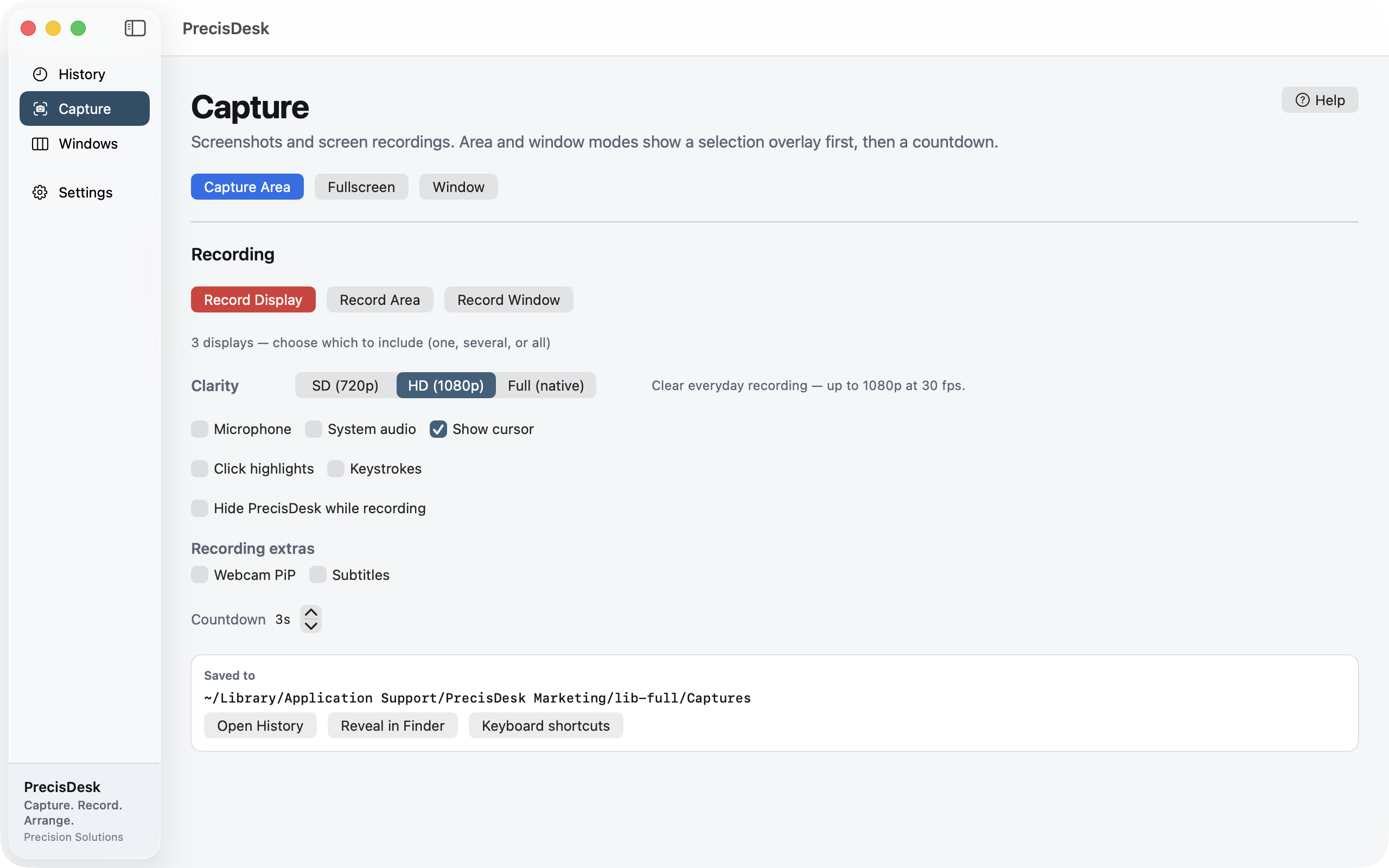
Open Capture and pick Capture Area, Fullscreen, or Window. Area and Window show a selection overlay first, so you can see exactly what you are about to take.
-
Make the selection
Drag a region, or move the pointer over a window and click it. Area and Window modes run a short countdown after you choose, which you can set or switch off.
-
Work with it in the overlay
The Quick Access overlay appears with the capture in it. Annotate, copy, reveal in Finder, print, or delete — without hunting for the file first.
-
Set where captures are saved
The Capture panel shows the current save folder. Point screenshots and recordings at one folder or keep them separate, and set a filename template so shots are named the way you want.
-
Give it a keyboard shortcut
Every capture mode can be triggered by a global hotkey from Settings, so you never have to bring the app forward to take a shot.
What you can capture
- Area — drag any rectangle, on any display
- Window — click a window and get it cleanly, without the desktop behind it
- Fullscreen — a whole display, chosen from the display picker when you have several
After the shot
- Annotate in the built-in editor — arrows, shapes, text, redaction
- Copy to the clipboard as an image
- Print through the standard macOS print panel
- Reveal in Finder, or delete it and pretend it never happened
Common questions
Where do screenshots get saved?
A folder you choose. PrecisDesk defaults to its own Captures folder, and you can point screenshots and recordings at the same folder or at different ones in Settings.
Can I rename captures automatically?
Yes. Filename templates support the date, time, capture mode, pixel dimensions and a counter, so shots arrive already named the way you want them.
Does it need Screen Recording permission?
Yes — macOS requires the Screen Recording permission for any app that captures the screen, including for still screenshots. PrecisDesk asks for it on first use and nothing is captured until you grant it.
Try it on your own files
PrecisDesk is a one-time $9.99 purchase — no subscription, no account, and nothing leaves your Mac. Requires macOS 14+.