PrecisDesk feature guide
Clip editor: trim the ends, cut out the middle
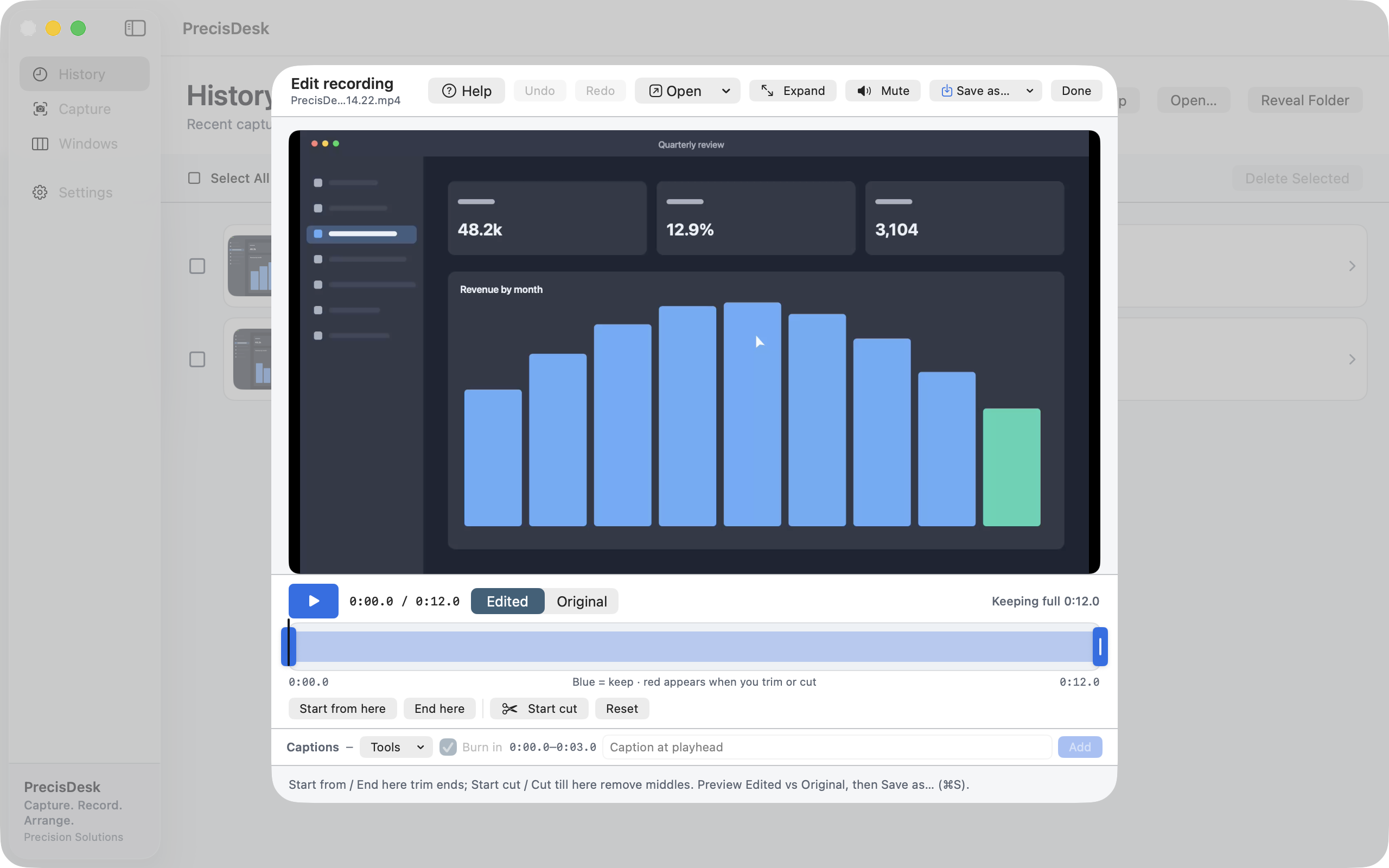
Drag the blue handles to trim, or mark a section in the middle and remove it. The preview switches between Edited and Original so you can check what you actually cut before you commit, and nothing touches the source file until you save.
What it's for
Almost every screen recording needs the same two edits: lose the first few seconds where you were reaching for the mouse, and lose the bit in the middle where something went wrong. That is not a video editing project. It should not require a video editor.
The PrecisDesk clip editor does exactly those two things well. Trim the ends, cut middles out, preview the result, save. The edit is non-destructive — your original recording is untouched until you export, and you can reset back to the full clip at any point.
How to use it
-
Open a recording
Recordings open in the editor when you stop recording, or from History at any time later.
-
Trim the ends
Drag the blue handles, or park the playhead and use Start from here and End here. Blue is what you keep.
-
Cut out a middle
Put the playhead where the bad part starts, click Start cut, move to where it ends, and cut till there. The removed range turns red on the timeline.
-
Check it before you commit
Switch the preview between Edited and Original. Edited plays the version you are about to export, skipping everything you cut.
-
Save as a new file
Save as… writes a new MP4 or an animated GIF. The recording you started from is left exactly as it was.
What the editor does
- Trim from the start and the end
- Remove any number of sections from the middle
- Split markers on the timeline
- Mute the audio track
- Export MP4 (H.264) or animated GIF
- Undo and redo, and a reset back to the untouched clip
Non-destructive by default
Edits live alongside the recording, not inside it. Nothing is written over your original file, and Reset restores the full clip with every cut cleared.
Common questions
Does editing overwrite my recording?
No. Edits are non-destructive and Save as… writes a new file. Your original recording stays as it was.
Can I export a GIF?
Yes — the Save as… menu offers MP4 or animated GIF.
Can I see what a cut will look like before saving?
Yes. The Edited preview plays the clip exactly as it will export, with every cut applied, and you can flip back to Original to compare.
Try it on your own files
PrecisDesk is a one-time $9.99 purchase — no subscription, no account, and nothing leaves your Mac. Requires macOS 14+.