Twinkeep feature guide
File Rules: put your Downloads folder on autopilot
File Rules is folder automation built into Twinkeep. Point it at Downloads, your Desktop, or any folder you choose, and new files get filed the moment they land — by type, name, size, age, Finder tag, or whether they're a duplicate.
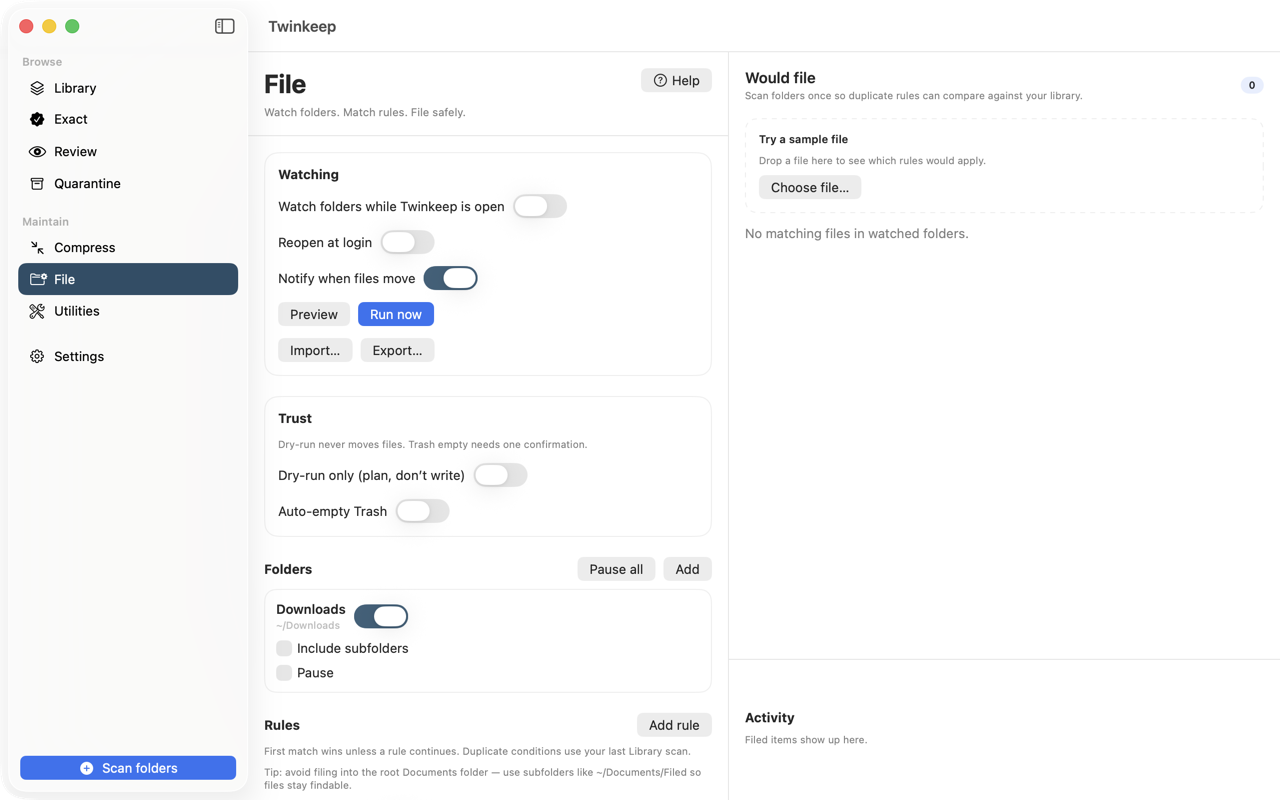
What it's for
Most Mac cleanup apps tidy once. You run a scan, you delete some things, and three weeks later the Downloads folder looks exactly the same. File Rules is the part of Twinkeep that stops the pile coming back.
It watches folders you choose and applies rules you write, automatically, as files arrive. Screenshots go to a screenshots folder. Invoices go where invoices go. Installers you already ran get quarantined. You set it up once.
This is the job people usually buy a separate Mac folder-automation app to do. It is included in Twinkeep at no extra cost, alongside the duplicate cleaner.
How to use it
-
Open File Rules and turn watching on
Twinkeep ships with File Rules switched off, so nothing moves on your Mac until you ask it to. Open File in the sidebar and turn on watching. Downloads is watched by default; add any other folder you want covered.
-
Review the six rules that come with it
Twinkeep includes six working rules on day one: screenshots, invoices, insurance documents, other PDFs, old installers, and images. They file into
~/Downloads/Twinkeep/so they work immediately, without asking you for access to folders elsewhere on your Mac. -
Point a rule somewhere else, if you want
Open any rule and click Choose… next to the destination to send files to Pictures, Documents, or an external drive instead. Choosing the folder is what grants Twinkeep permission to write there — there is no separate permissions dance.
-
Write your own rule
Add a rule, pick your conditions, then pick what happens. Match on all conditions or any of them. A rule like “extension is .dmg AND older than 30 days → Quarantine” takes about fifteen seconds to build.
-
Preview before you trust it
Every rule shows a live preview of the files it would act on right now, so you can confirm the match is right before anything moves. Turn on notifications if you want to be told each time something is filed.
What File Rules can match on
Sixteen conditions, combined with all or any logic:
- Media kind — photo, video, audio, document, code
- Extension — one or many, like
pdf,dmg,zip - Name — contains, starts with, or matches a pattern
- Size — greater than or less than a threshold
- Finder tag — act on files you have already tagged
- Age — by created, modified, or added date
- Duplicate status — is an exact duplicate, is a near duplicate, or is unique
That last one is worth calling out. Because Twinkeep is also a duplicate scanner, your automation can act on what the scanner found — a rule can quarantine anything that is already an exact copy of a file you keep elsewhere.
What File Rules can do
Nine actions:
- Move or copy to a folder
- Sort into folders by a pattern you define
- Sort into year and month — a dated archive, automatically
- Rename by pattern
- Add or remove Finder tags
- Quarantine — Twinkeep's recoverable holding area, not the Trash
- Send to Review — hold it for your decision instead of acting
Emptying the Trash automatically
File Rules can also empty your Trash on a schedule, by age or by size. It is off by default and requires an explicit confirmation before it will ever run, because it is the one action in Twinkeep that is not recoverable.
Common questions
Does File Rules move my files without asking?
No. It ships switched off. Nothing is watched or filed until you turn it on, and every rule shows you a preview of what it would act on before you enable it.
Can it organize folders other than Downloads?
Yes. Downloads is watched by default because it is the folder that fills up fastest, but you can add your Desktop, an external drive, or any folder you choose.
What happens to files it files away — can I undo it?
Moves are ordinary file moves, so you can drag anything back. Rules that quarantine put files in Twinkeep's Quarantine, where you can restore them to their original location with one click.
Do I still need a separate folder automation app?
File Rules covers the same job — watch a folder, match files, act on them automatically — with sixteen match conditions and nine actions. The difference is that Twinkeep is also a duplicate cleaner, so a rule can match on whether a file is already a duplicate of something you keep. It is included in the one $9.99 purchase.
Does it need internet access or an account?
No. File Rules runs entirely on your Mac. Twinkeep has no account, no telemetry, and never uploads your files.
Try it on your own files
Twinkeep is a one-time $9.99 purchase — no subscription, no account, and nothing leaves your Mac. Requires macOS 13+.